Depending on how your company is structured, you may wish to create different employee groupings.
You may create full hierarchical structures to simulate the methods by which your company is organized.
To access the Organizational Structure setting, choose it from the left menu under Company.
Here you will see a listing of the current organizational structures which have been setup.
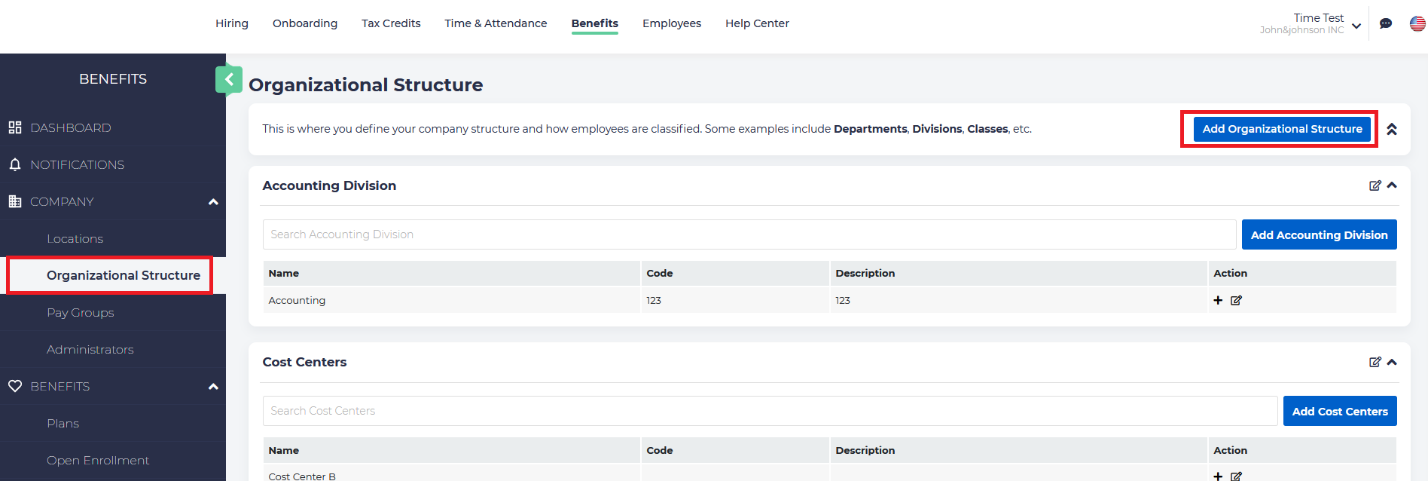
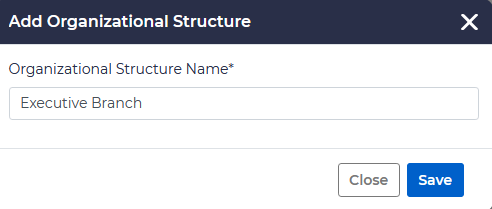
To add a new rung in your organizational structure, click on the blue Add Organizational Structure button on the upper right. Here you can enter the name of your new structural branch:
Once built, you will see an empty branch created on the screen that looks something like this.
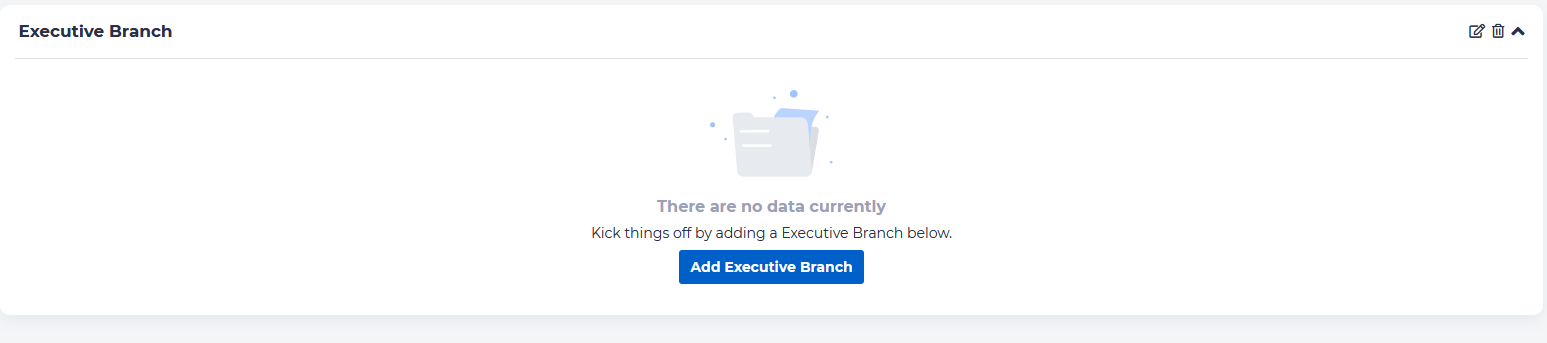
You can then add various sub branches for each segment, by clicking the blue button on the right to add a new segment, if you wish to nest sub-branches, simply click on the “+” to the right of each entry, creating a full hierarchical structure. In this way you can mimic your company’s organization chart.

Once these structures have been created, they can be used in other segments of the application such as for providing administrative access to individual branches and sub-branches, setting waiting period rules, and/or contribution amounts, if these vary within your organization.
It is also possible to use these structures for reporting procedures.
Note: Structures cannot be deleted once an employee has been assigned to it through the enrollment process.